
1. Choose cm or inches
Select cm or inches in the Dimensions panel.
You can switch between them at any time. The numbers change, but the box stays the same size.

2. Enter your box size
Click a size field and enter a number. Press Enter or click outside the field to apply it. You can also press Tab to apply the number and move to the next field.
The template and 3D preview will update. Repeat for the other sizes.
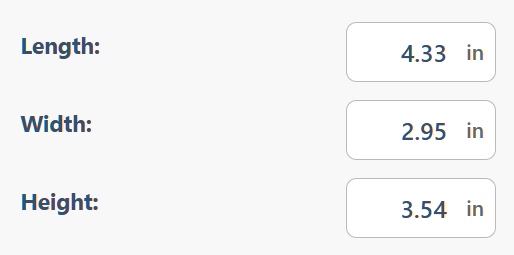
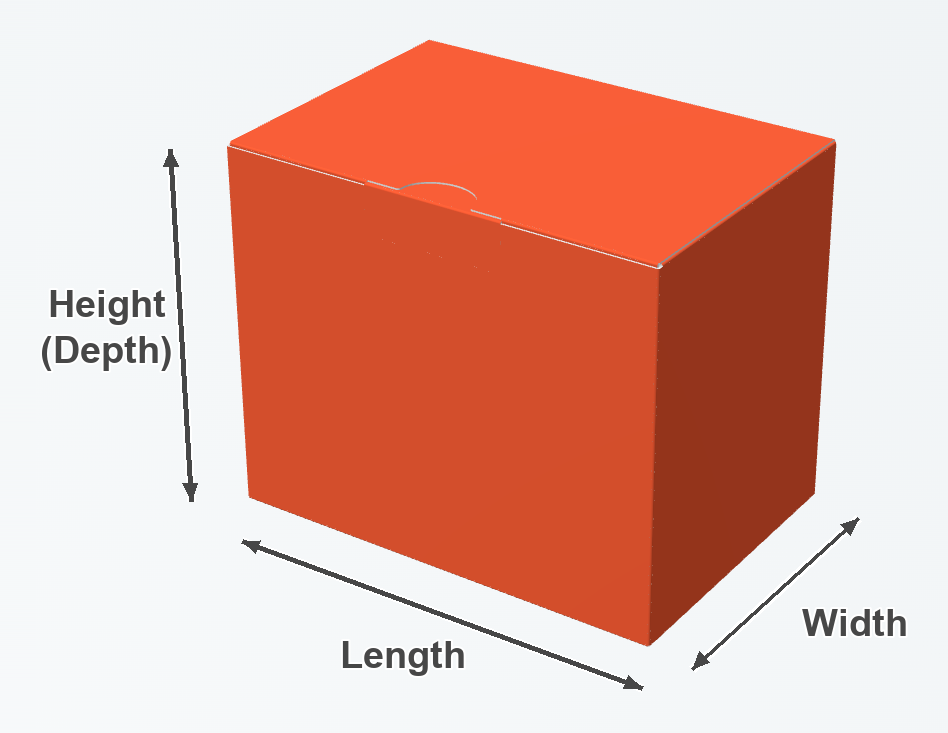
Most templates have three size fields:
- Length — how long the box is.
- Width — how wide the box is.
- Height (also called depth) — how tall the box is.
These sizes describe the folded box, not the flat template.
3. Set any extra sizes
Some templates have extra fields, such as Lid height.
The fields you see depend on the template you choose.

4. Check your box
Look at the 3D preview to check the shape of your box. If needed, change the sizes again.
The flat template needs space for all the sides and flaps. If you see Paper margins exceeded, the template is too big for the selected paper.