
What does the warning mean?
The warning appears in Manual mode when your template extends beyond the margin frame. The frame turns red to show the problem.
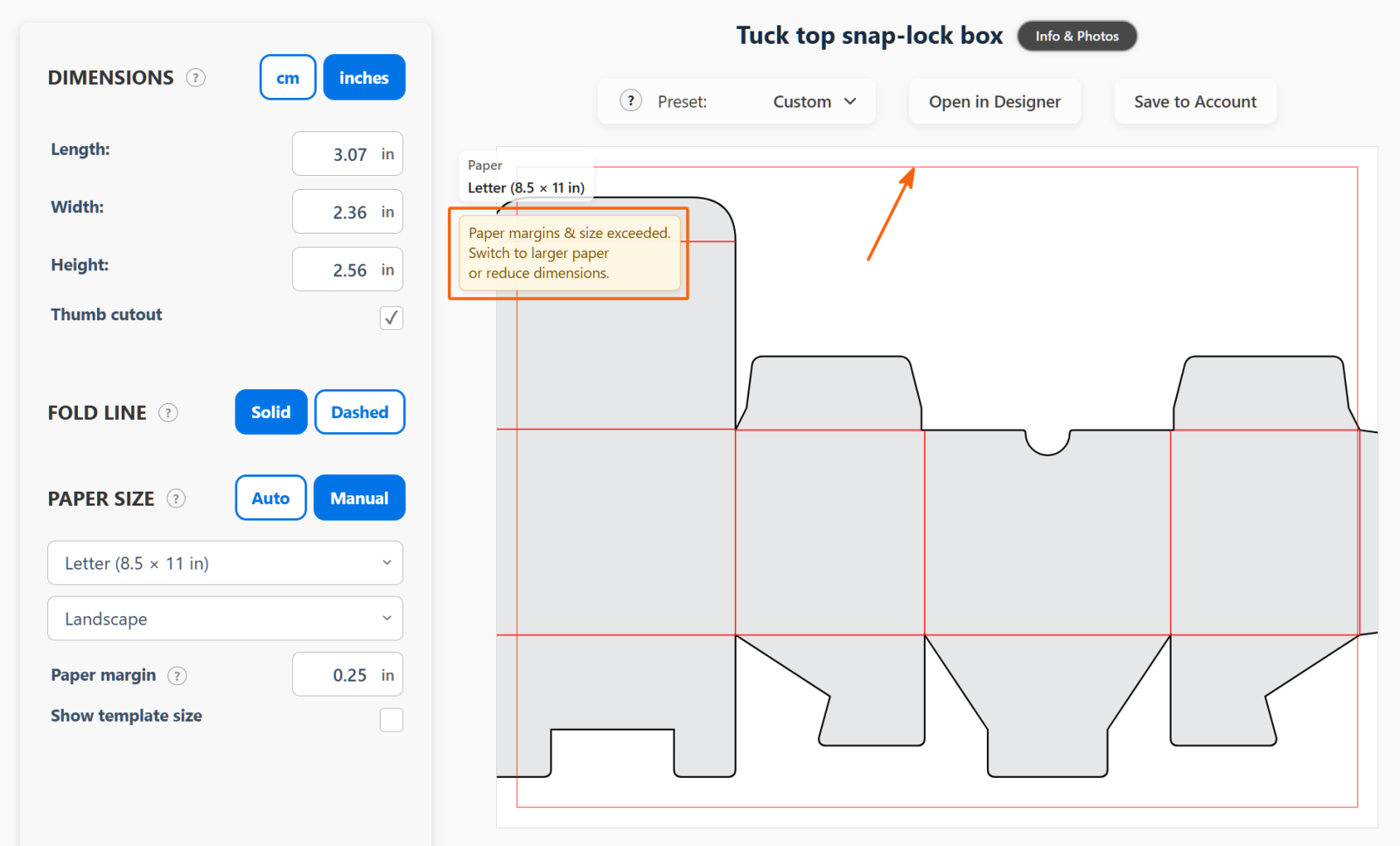
How to fix it
Try one of these options:
- Use Auto — let the builder choose a paper size and orientation that fit.
- Choose larger paper — in Manual mode, select a larger sheet.
- Change the paper orientation — try Portrait or Landscape. This may help in some cases.
- Make the box smaller — reduce its Length, Width or Height.
- Use a 2-panel layout — it lets you make a larger box using smaller sheets of cardstock.
Check the result
The whole template should fit inside the frame. When it fits, the frame turns blue and the warning disappears.
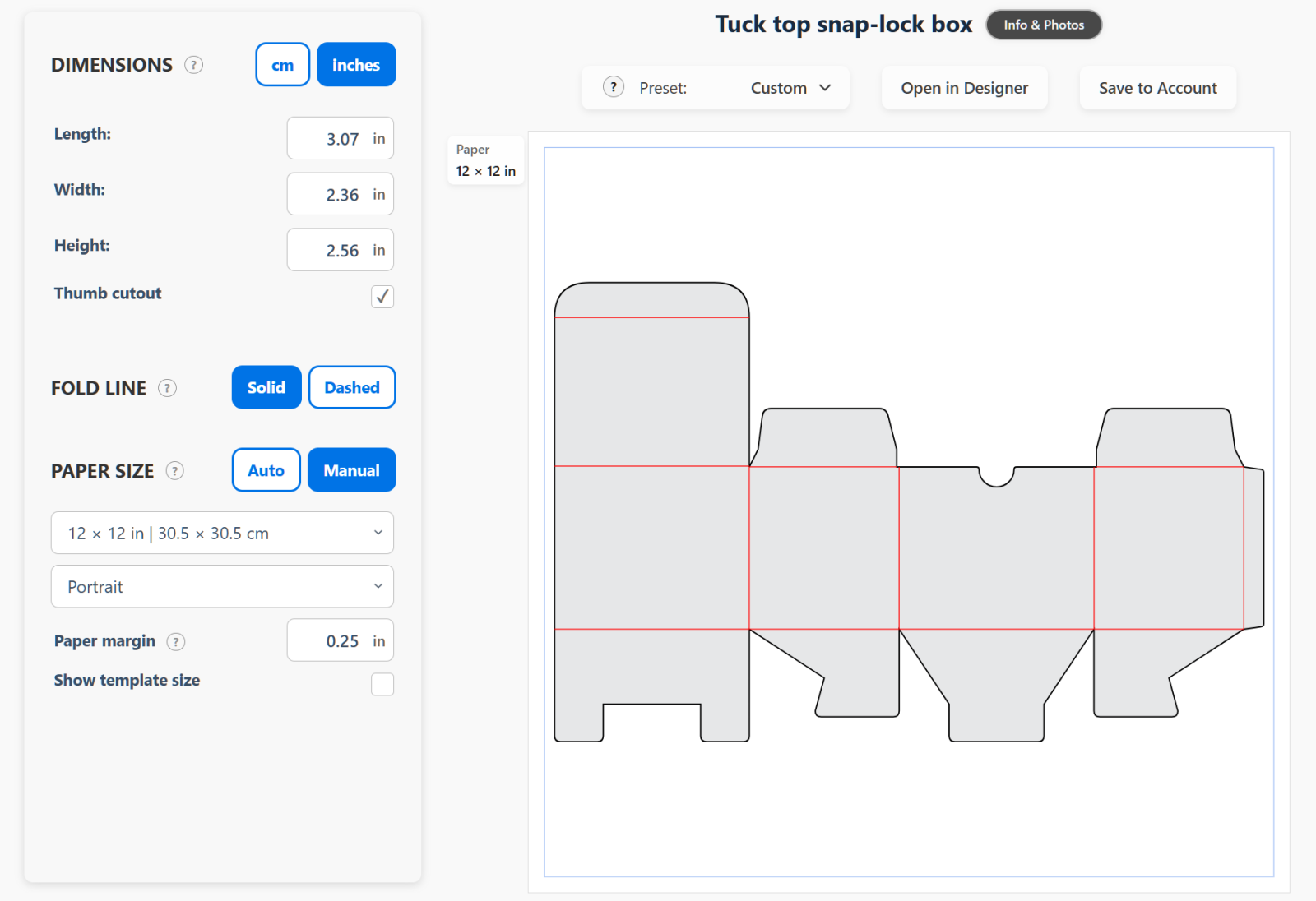
In this example, changing the paper from Letter to 12 × 12 inches makes the template fit without changing the box dimensions.
Note: Box size is not paper size. The box dimensions describe the folded box. The paper must fit the whole flat template, including all its sides and flaps. Choosing A4 or Letter paper does not mean you can make a box with the same length and width as that sheet.