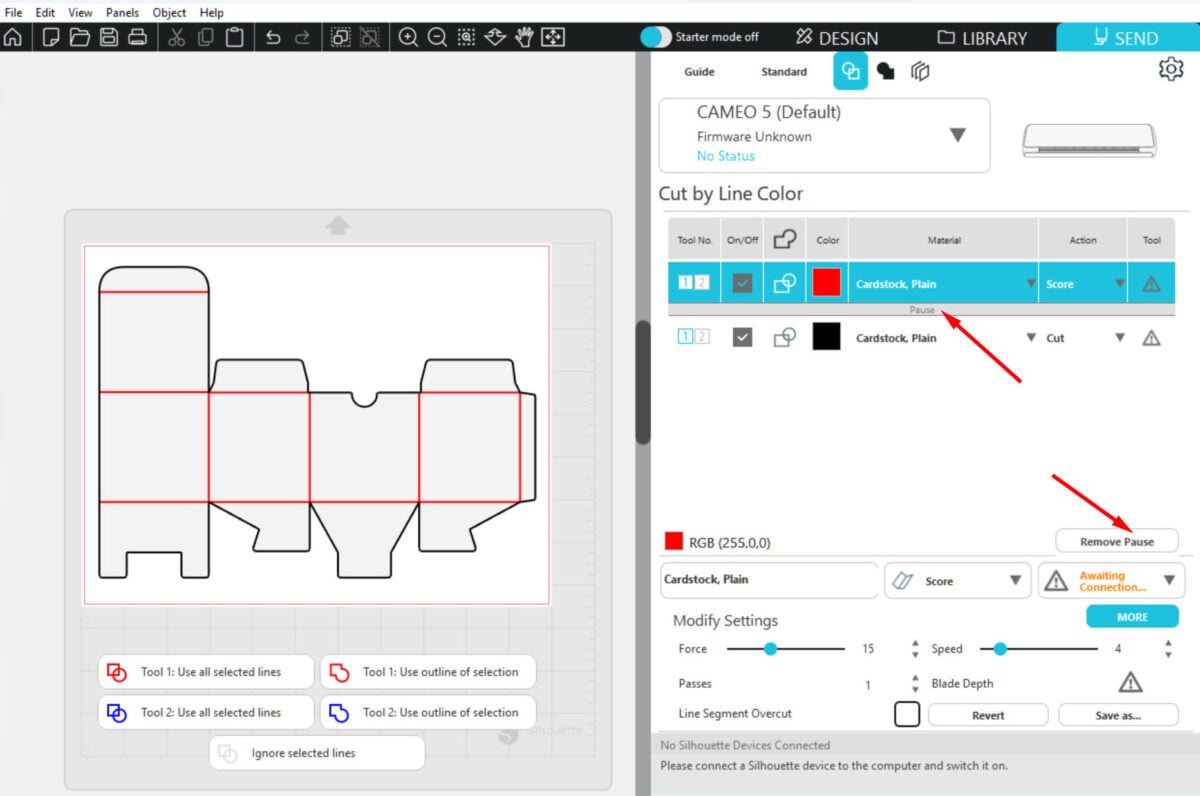
This method uses a low-force blade setting (kiss cut) to create solid fold lines without cutting through the material.
1. Download the template
Download your template from the Box Template Studio generator page. Make sure the fold line style is set to “Solid“.
Then save the file as SVG or DXF, depending on your version of Silhouette Studio.

2. Open Send
Upload the template into Silhouette Studio. Position the panel on the canvas, then click “SEND”.
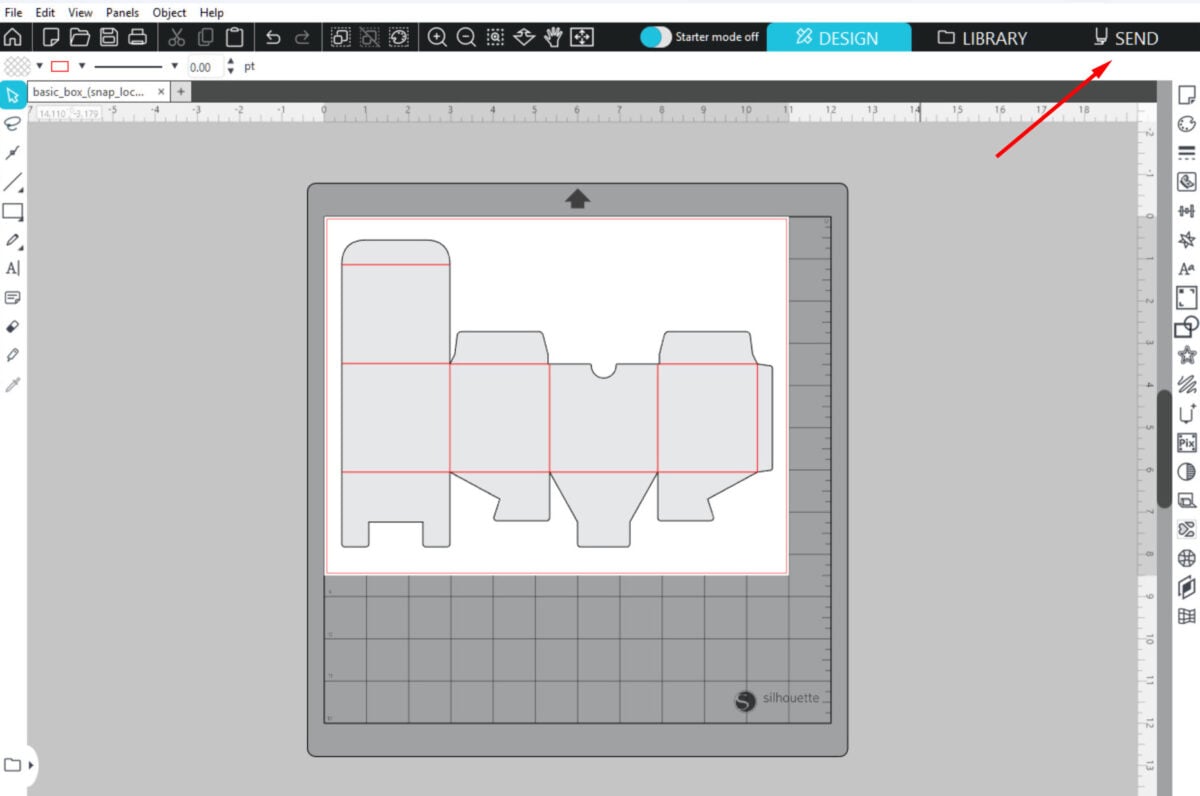
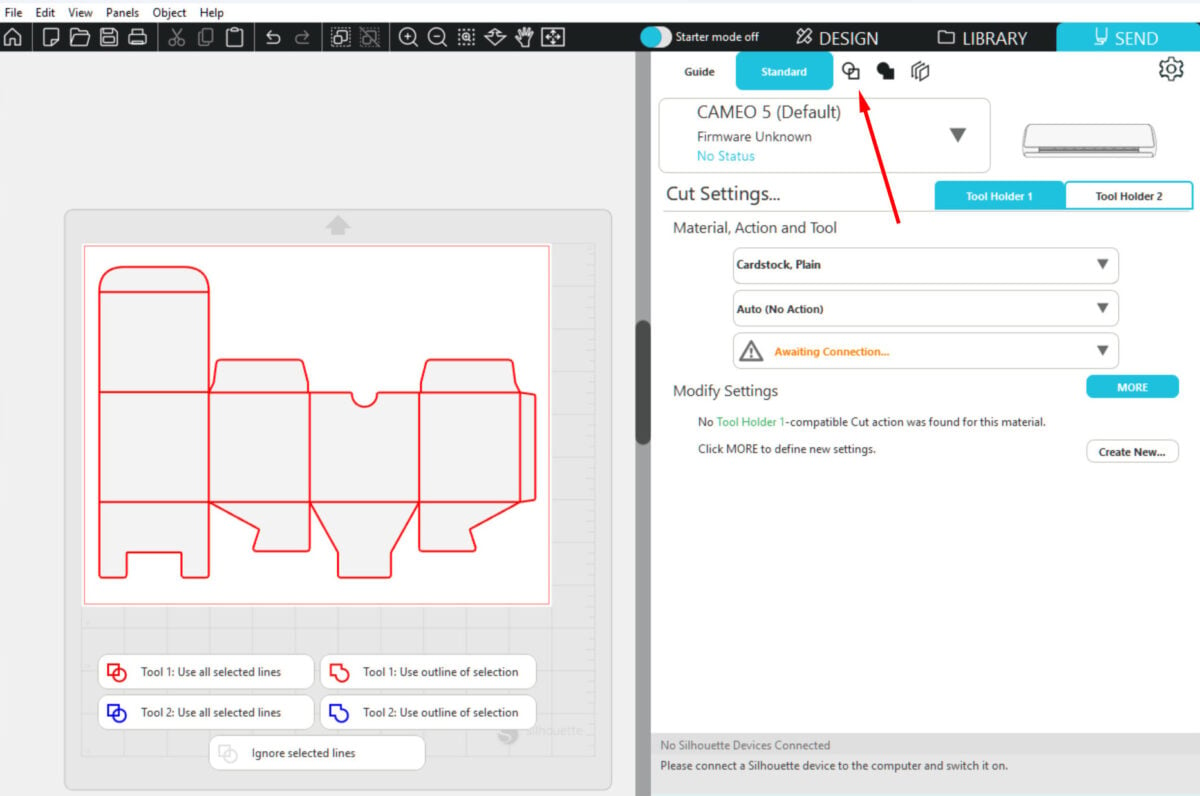
3. Choose Cut by Line Color
In the “Send” area, select the “Cut by Line Color” option. To do this, click on the icon indicated by the arrow.
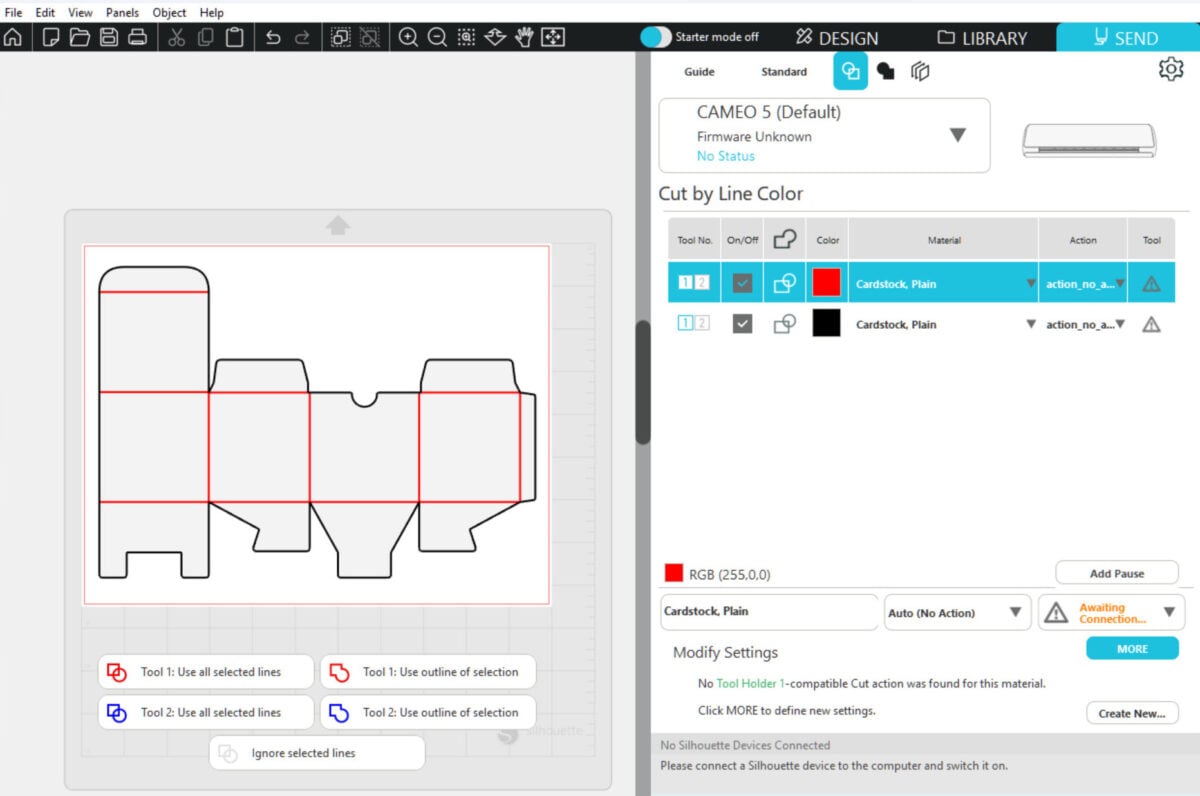
4. Move the red lines first
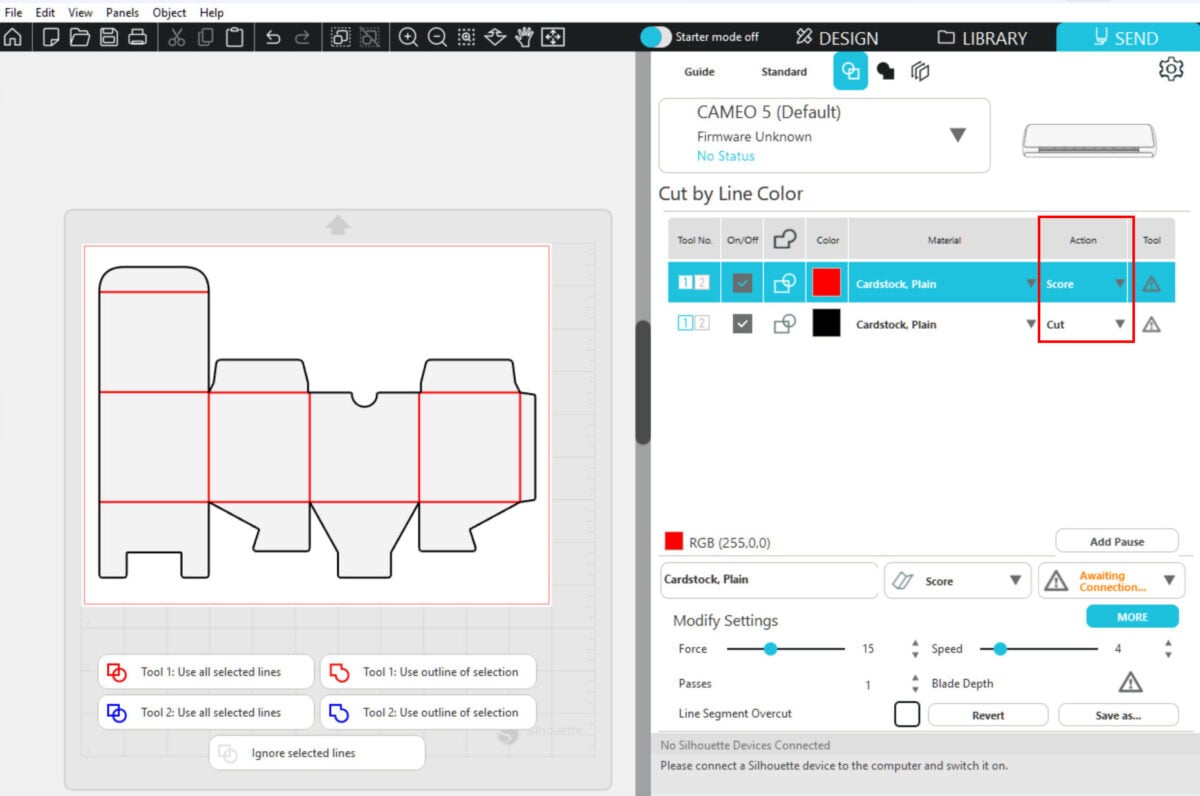
In the “Cut by Line Color” area, you’ll see two line groups: red for score lines and black for cut lines. Drag the red group above the black group by hovering over the red square and moving it upward.

5. Check the line order
Now the red group is above the black one. This order ensures that the score lines are made first.
6. Set Score and Cut
This is the most important step. Change the action for the red lines to “Score” and for the black lines to “Cut.”
Make sure your material is set to Cardstock or a thicker option — otherwise, the “Score” action won’t be available.
7. Add a pause for a manual blade
If you’re using a manual blade, add a “Pause” between the layers. This is necessary because you’ll need to change the blade depth between operations.